WLAN Pros AutoSetup for the WLAN Pi
About 15 minutes: flashing the card takes the most time. From power-on to the printed report, a fresh card takes about 6 minutes. You flash your Pi, run one setup script, print your Pi's report, and ask the Pi its first question.
You need: a WLAN Pi (M4+, M4 or R4) with WLAN Pi OS 26.10 "DeadEye", a microSD card, Ethernet to the same network as your Mac, Terminal, and a paid Claude plan for Claude Code. No Claude Code on your Mac yet? The setup script offers to install it. Each step says what you should see: that's the Pass line.
Part A. Flash and boot (about 8 minutes)
Already have a freshly flashed DeadEye card? Skip to step 3.
- Download WLAN Pi OS 26.10 "DeadEye" from the WLAN Pi team: WLAN Pi OS 26.10 (DeadEye) release. Under Assets, pick the file ending in
-full.img.gz. Keep the.img.gzfile as it is; don't unzip it. -
Write it to the microSD card with Raspberry Pi Imager or balenaEtcher:
- Raspberry Pi Imager: click Use custom, pick the
.img.gzfile, choose the microSD card and check its size. Say No to OS customization. - balenaEtcher: click Flash from file and pick the
.img.gzfile, then Select target, the microSD card (check its size), and Flash!
Pass: the app says the write (and the check) finished. 3. Card into the Pi, then Ethernet, then power. A fresh card's first boot takes about 3 minutes while it sets itself up. That's normal; wait for it. Pass: the Pi's screen comes up, or it answers on the network. 4. Write down the Pi's name and IP address from its screen.
An R4 with the 3.5-inch touchscreen
Its touchscreen stays white until the setup installs it, so it can't show you the name yet. Use the name on the Pi's label (it looks like
wlanpi-b88), or find the IP address in your router's list of devices. - Raspberry Pi Imager: click Use custom, pick the
Part B. Run the setup script (about 4 minutes)
The script connects Claude on your laptop to your Pi, sets the country and time zone, and adds the options you choose. It shows where it is as Step 1 of 6 to Step 6 of 6; each step below names the one you'll see.
- On your Mac, not on the Pi: get the setup kit and start it. Paste this one line into Terminal on your Mac. It downloads
WLANPros-AutoSetup.zipinto your Downloads folder, unzips it there, and starts the script:The script reaches the Pi over the network, so it never runs on the Pi itself. If Claude Code isn't on your Mac yet, the script offers to install it: press Return. Leave thecd ~/Downloads && curl -fLO https://library.wlanpros.com/wlanpi-autosetup/WLANPros-AutoSetup.zip && unzip -oq WLANPros-AutoSetup.zip && bash ~/Downloads/WLANPros-AutoSetup/wlanpi-setup.shWLANPros-AutoSetupfolder where it is: the options need the files beside the script. Don't sign in to the Pi first (nosshto it): the script sets the Pi's password itself, and a Pi whose password was already changed has to be reflashed. Pass: it asks for the Pi's name. -
Script Step 1 of 6, Find the Pi: type the Pi's name. With or without
.localboth work. Pass: no line starting with STOPPED.If the name doesn't work
The script says so and asks again: type the IP address instead.
-
Step 2 of 6, Sign in to the Pi: choose the Pi's new password. A fresh Pi asks for one: type it twice. Nothing shows while you type. The Pi can take up to a minute to answer. Pass: "New password set", then Step 3 of 6, Check the Pi shows your Pi's name,
core activeandMCP active, and "Applying the UTF-8 fix". On a fresh card you may also see a red ✗ The Pi's clock reads ..., then "Clock set to this laptop's time": that's normal too. - Country code. First you'll see a red ✗ Country code not set: that's normal on a fresh card. Type the two-letter code of the country you're in and press Return:
USin the United States,MXin Mexico. Pass: "Country code set to US" (or your code). - Time zone. A red ✗ Time zone is America/Chicago is normal too. Press Return to use your laptop's time zone. The script then restarts the Pi's services: wait about 20 seconds. Pass: "Time zone set to ..." with your zone.
-
Step 4 of 6, Choose what to add. Press Return for Yes, or type
nto skip:- Dual Orb (one Orb sensor on Ethernet, one on Wi-Fi): then type the Wi-Fi network the Wi-Fi Orb should join, and its password.
- FreeRADIUS (a RADIUS server for testing Enterprise Wi-Fi).
- The 3.5-inch screen: type
yonly if your Pi has the 3.5-inch touchscreen, then a name to show on it. If your Pi has the small 1.44-inch screen with buttons, press Return for No: a Yes turns that screen's menu off and it goes white. Said yes by mistake? Runbash ~/Downloads/WLANPros-AutoSetup/wlanpi-setup.sh --remove-screen wlanpi-xxxand the stock screen comes back after a reboot.
Pass: no line saying an option was skipped because its files aren't beside the script. If you see one, you ran a script copied out of the folder: go back to step 5. 11. Step 5 of 6, Connect Claude Code: token length. Press Return for 30 days, then wait about 20 seconds while the Pi restarts its services. Then Step 6 of 6, Install and finish installs what you chose (about 2 minutes), shows a Summary, and asks to reboot the Pi if you added the screen: press Return. Pass:
Done. Claude Code can now use wlanpi-..., and the date the token expires.
If it stops
Every problem prints a line starting with STOPPED: and says what to check. Copy the whole Terminal output: it says what went wrong.
Part C. Your WLAN Pi report (about 1 minute)
The setup's last step makes a one-page report on your Pi and opens it for you: everything about the Pi on one printed page. Keep it with the Pi. When you ask for help later, this page is what you bring.
-
Print the report that opened. If the Pi rebooted, the script first says "Waiting for wlanpi-... to come back" for about a minute; then the PDF opens on its own. It's saved as
~/wlanpi-class/wlanpi-xxx-report.pdf. Pass: a one-page PDF is open. Print it.If no PDF opened
A Pi slow to come back from its reboot prints a command instead. Run it, putting your Pi's name in place of
wlanpi-xxx:It signs in with the key the setup made, so it never asks for your password, and it changes nothing on the Pi. You can run it any time to print a fresh copy.bash ~/Downloads/WLANPros-AutoSetup/wlanpi-setup.sh --report wlanpi-xxx
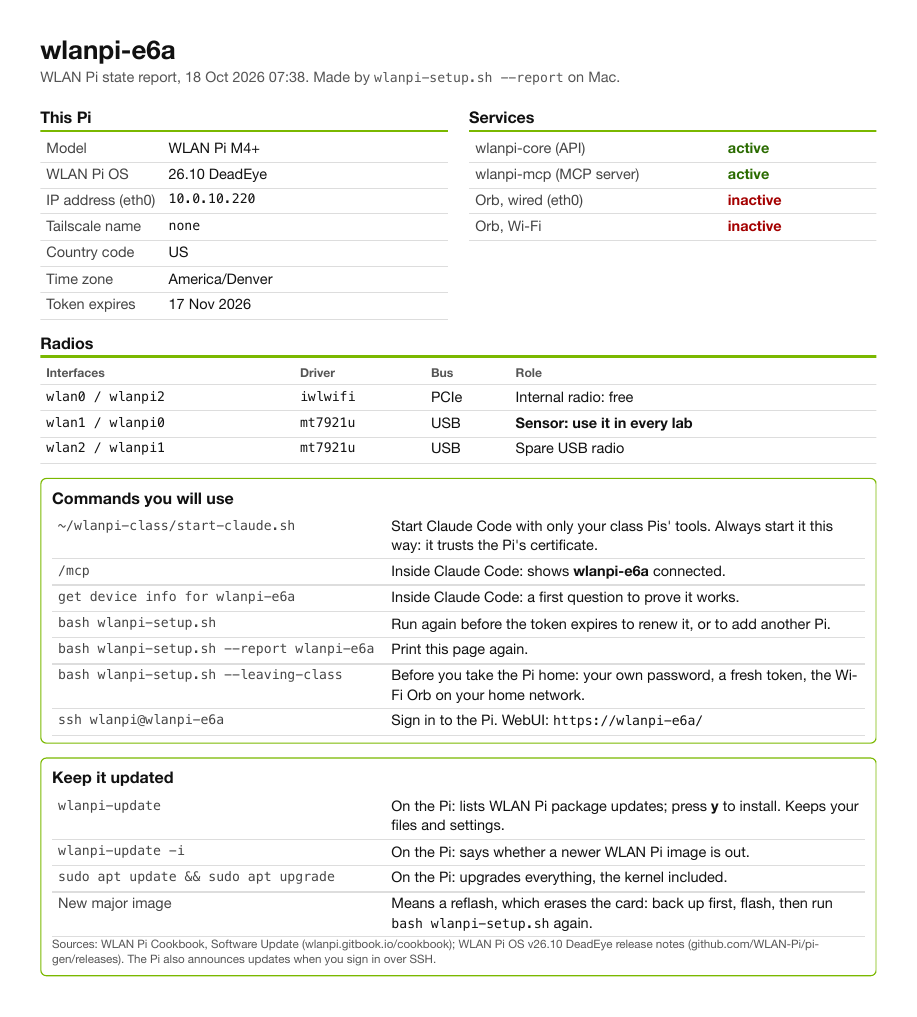
A sample WLAN Pi report. Click it to open the PDF.
What each part tells you
| Part | What it says | What to check |
|---|---|---|
| This Pi | model, WLAN Pi OS version, its address (wired, or USB if that's how you reach it), its front-panel screen, Tailscale name, country code, time zone, and when the token expires | Software 26.10 DeadEye. Your country, not "Not set". Your time zone. Anything in red needs the setup run again. |
| Services | the Pi's API (wlanpi-core), its AI connection (wlanpi-mcp), and the two Orb sensors, wired and Wi-Fi |
Both wlanpi- lines active. An option you skipped says not installed. |
| Radios | every Wi-Fi radio: its interface names, driver, bus, and the job it has | One radio marked Sensor: use it in every lab. That's the name you use in the labs. A radio marked Orb Wi-Fi belongs to Orb: never use it. A spare USB radio or a free internal radio is fine to leave alone. |
| Commands you will use | how to start Claude, check the connection, renew the token, print this page again, get the Pi ready to take home, and sign in to the Pi or its web page | These are the commands you'll use. |
| Keep it updated | how to update the Pi's software, check for a new image, and what a new major image means | Run wlanpi-update on the Pi now and then. A new major image means reflashing: back up first, then run the setup again. |
Part D. Ask your Pi its first question (about 2 minutes)
- Start Claude Code with your Pi. If it asks whether to trust the
wlanpi-classfolder, say yes.Pass: Claude Code opens. It loads only your WLAN Pi, not any other tools you use with Claude.~/wlanpi-class/start-claude.sh -
Check the connection.
Pass: your Pi shows as connected. The list stays open until you press Esc./mcpAfter the Pi reboots
Claude Code doesn't reconnect to a Pi that rebooted while it was open. Type
/mcp, pick your Pi, and choose Reconnect.- Press Esc to close the list and get back to the prompt. Then ask:
Pass: your Pi's model, and software
What WLAN Pi am I connected to? Give me its model, software version and uptime.26.10. - Quit Claude Code.
/exit
- Press Esc to close the list and get back to the prompt. Then ask:
Renewing later
The connection lasts the days you chose in step 11. To renew it, run step 5's command again with the same name and your password. Then print a fresh report: the new expiry date is on it.